Linux File Permissions: chmod, chown, and umask
Learn to read ls -l output and use chmod, chown, and umask correctly, plus setuid, setgid, and sticky bits and the mistakes to avoid.
On this page
Permission errors are one of the first walls newcomers hit on Linux, and “fixing” them with brute force is a habit that causes real security problems. The model is small enough to learn in one sitting, so let’s do that.
Reading ls -l output
ls -l deploy.sh# -rwxr-xr-- 1 perdi devs 1204 Mar 3 10:12 deploy.shThe first column is ten characters. The first is the type (- file, d directory, l symlink). The remaining nine are three triplets: owner (user), group, and others. Each triplet shows read (r), write (w), and execute (x), or - when missing. After the link count come the owning user (perdi) and owning group (devs).
The kernel checks in order: if you are the owner, the owner triplet applies; otherwise, if you are in the group, the group triplet applies; otherwise the others triplet does. It never combines them.
Numeric and symbolic chmod
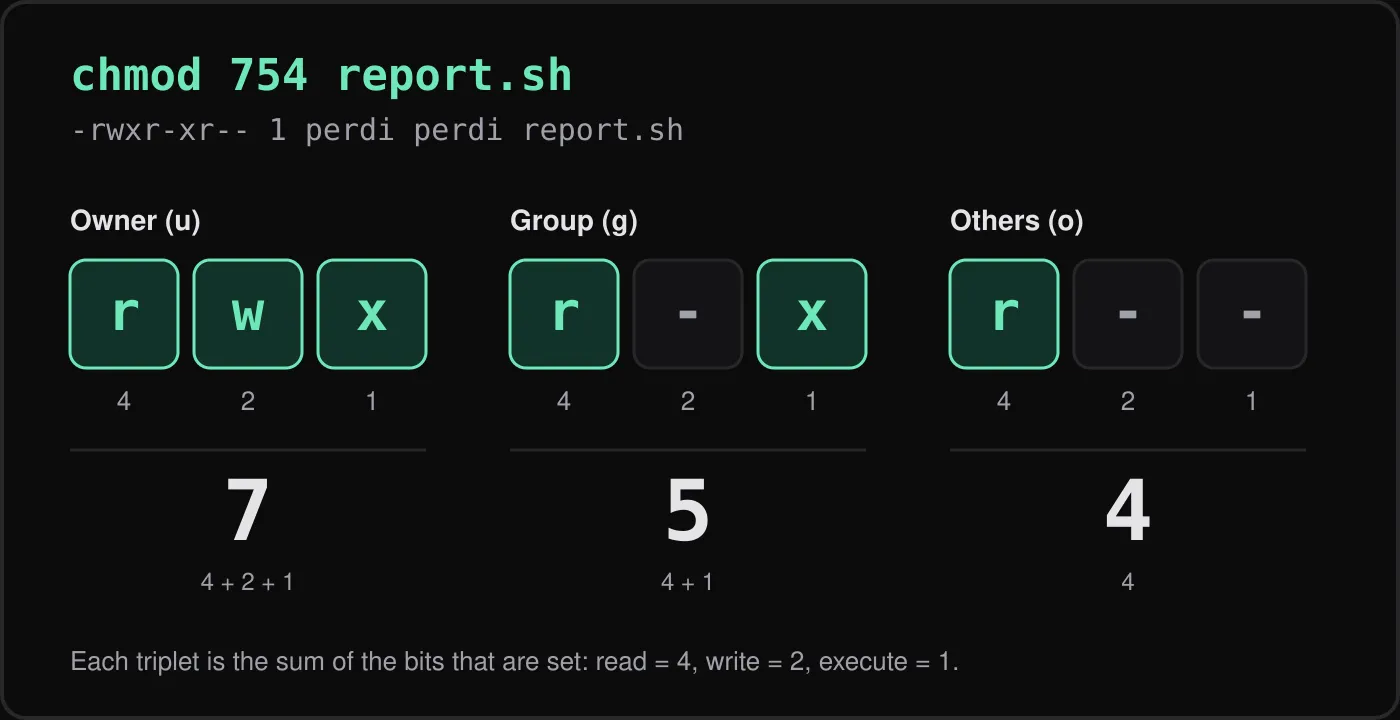
Each permission has a value: read is 4, write is 2, execute is 1. Add them up per triplet and you get an octal digit. For 754, the owner gets rwx (7), the group gets r-x (5), and others get r— (4).
Both styles do the same job:
chmod 754 deploy.sh # numeric: set everything at oncechmod u=rwx,g=rx,o=r deploy.sh # symbolic: same resultchmod +x script.sh # add execute for everyonechmod g-w,o-rwx secrets.env # tweak only what you mean tochmod -R u+rwX,go-w project/ # capital X: execute only on directoriesI prefer symbolic mode for small adjustments because it does not clobber bits I did not mention.
Directories behave differently
On a directory, r lets you list names, w lets you create or delete entries inside, and x lets you traverse it, meaning access items by path. Without x on a directory you cannot cd into it or open files within, even if the files themselves are readable. This is why web server errors often trace back to a parent directory missing x.
Changing ownership
sudo chown perdi file.txt # change ownersudo chown perdi:devs file.txt # owner and groupsudo chown -R www-data:www-data /srv/sitechgrp devs shared/ # change group onlyOnly root can change a file’s owner. A regular user can change the group to one they belong to.
What umask does
New files do not start at 777. The shell’s umask removes bits from the defaults: 666 for files, 777 for directories. With the common 022, write is removed for group and others, giving 644 files and 755 directories.
umask # 0022umask 077 # private by default: 600 files, 700 directoriestouch a && mkdir b && ls -ld a bSet it in ~/.bashrc if you want a stricter default. A umask of 077 suits a personal machine holding keys and tokens.
setuid, setgid, and the sticky bit
These are special bits shown in a fourth, leading octal digit.
- setuid (4): an executable runs as its owner.
passwduses this. - setgid (2): on a directory, new files inherit the directory’s group, which is useful for shared project folders.
- sticky (1): in a directory like
/tmp, only a file’s owner can delete it.
chmod 2775 shared/ # setgid + rwxrwxr-xchmod +t /srv/drop # sticky bitBe careful with setuid on anything you write yourself.
Common mistakes
- Running
chmod 777to make an error disappear. It lets every user modify the file, and it hides the real cause. Find out which user needs access and grant exactly that. - Using
chmod -R 755on a tree, which marks every data file executable. - Making SSH keys group- or world-readable;
sshrefuses them. Usechmod 600 ~/.ssh/id_ed25519. - Forgetting that
sudocreates root-owned files in your project.
What to do next
Run ls -l in your home directory and explain every column to yourself. Then audit one real project: check what owns your deployment directory and whether any file is more open than it needs to be. If you are still getting comfortable with the shell, start with Linux terminal essentials.